
Connectable Training Library
Explore our growing library of short training videos to see how ConnectAble tools can save you time on everyday tasks. Each topic includes a quick video, plus downloadable or printable documents designed to support busy adult educators.
The ConnectAble LMS Training Guide
Click the topics on the left to access the training videos and accompanying documentation.
This video will explain the variety of login options with ConnectAble to reduce user frustration and increase efficiency. Click HERE to download a printable instruction sheet.
This video will explain how to start a brand new course from scratch. Click HERE to download a printable instruction sheet explaining how to create a course from scratch.
Click HERE to download a printable instruction sheet explaining how to use each of the content editor tools.
Frequently Asked Questions
What if a student needs to reschedule his/her appointment?
- Click Active Students.
- Search for your student by typing part of the student’s first or last name I the search bar.
- Scroll all the way to the right and click Change Password or Change Email to set up the login for the student. Encourage the student to change the password to something secret after they log in.
What if a student needs to reschedule his/her appointment?
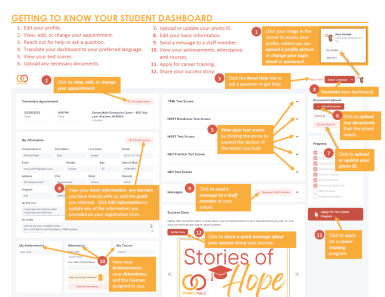
If the student has access to his/her dashboard, that student can click Update Appointment and self-select an appointment. If he/she does NOT have access to his/her dashboard, you can also edit the appointment on behalf of the student by clicking Edit Appointment from the Student Details screen.
How would I print or save a list of the students in my class?
- Click Active Students.
- Filter by your Course.
- Select Export to download a spreadsheet of your students, or select Print to print the list.
How can I view or print a PDF of a student’s files?
- Click Active Students.
- Search for your student by typing part of the student’s first or last name.
- Click the student to open the Student Details screen.
- Click View/Print Files. Choose to print the registration file, the photo ID, the Adult Learning Plan (ALP).
My student’s phone number changed. How can that be recorded?
- Click Active Students.
- Search for your student by typing part of the student’s first or last name I the search bar.
- Click the student’s name from the student list.
- Click Edit Student Information and make the change. Click Submit to save the change. The data team will be alerted of student updates for any changed made to student information.
- You could also decide to let the student to make his/her own change by instructing him/her to go to the student dashboard and click Edit Information from the student side of the dashboard. Again, the data team will be alerted of student updates for any changed made to student information.
How can I provide information and resources to the students about my class?
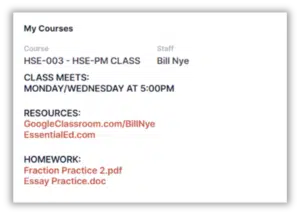
From the Courses tab, an administrator can add the information about your class that you would like to be shown on the Student Dashboard. An example of common course information is shown below:
I want to encourage students to let me know if they will miss class. What should I tell them?
- Tell the student to go to his/her Student Dashboard and click Message a Staff Member. Then find your name from the staff list and send the message. You will be able to directly reply and even attach an assignment.
Class is canceled. What is the quickest way to message all my students?
- Click Active Students.
- Filter by your Course.
- Select all students, then click Text/Email. (We recommend choosing the Text)
- Additionally, you could send a dashboard message with unlimited characters and an attachment by clicking Dashboard Messaging from the side menu and multi-selecting all your students from the dropdown student list. You will also have a record of your messaging for future reference.
How do I get help when I have a technical issue or question?
- Click Support Tickets from the side menu. Click Submit Your Support Ticket, then the Create New Support Ticket window will appear.
- Complete the required fields for your help ticket, then click Submit. You will receive a status email shortly after submission.
*You can also download the complete user guide (this document) by clicking Download the User Guide at the top of this page.
How do I submit ideas for future development for ConnectAble?
- Click Feature Requests from side menu.
- Click the Submit Your Feature Request button and complete the fields to describe the feature request. We will review those and implement as many of the requested features as possible in the next update!
How do I set up email notifications for staff when students complete registration or make appointments?
- Click Settings, then.
- Under Email Notifications, under Registrations Complete, enter the email of the person who should receive the notification when registrations are complete. This can also be left blank if you do not wish to receive notifications.
- For appointment notifications, enter the email address(es) that should receive the notification when an appoitnment is made. You can choose between General notifications, or notifications separated by Location or by This can also be left blank if you do not wish to receive notifications.
What do I do with students who exit?
- Mark the student as Inactive by using the toggle in that student’s row on the Active Students screen, or
- From the Student Details screen, under the student’s profile picture, switch the toggle to Inactive.
- If you ever need to bring a student back, go to the Inactive Students tab and search for the student. Then switch his/her toggle to Active.
Does your school need a training session? Let us know!